Jun 09, 2025 Total Views: 3854
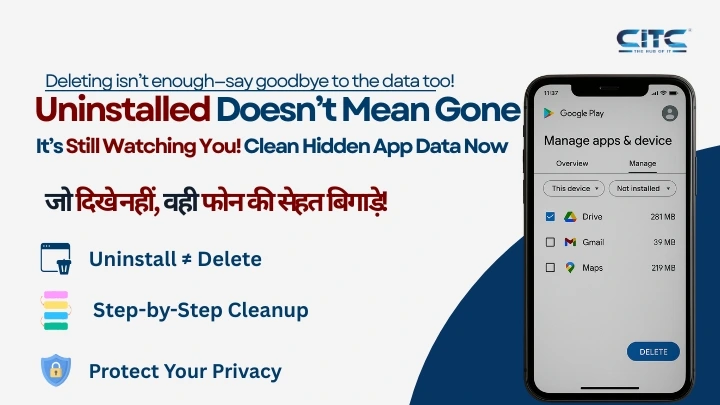
Uninstalling an App Doesn't Always Delete It Fully – Here's How to Remove It Completely!
डिलीट करना काफी नहीं, डेटा को भी कहो अलविदा!
🔍 Introduction
In today’s digital world, we install dozens of mobile apps for various needs—shopping, entertainment, learning, or productivity. But did you know that even after uninstalling some apps, fragments of them still remain on your device?
These residual files can access sensitive data like your location, gallery, contacts, and even microphone—without your knowledge. This puts your privacy at risk and clutters your smartphone over time.
In this blog post, we’ll show you a step-by-step guide to completely delete such apps from your Android device and maintain a clutter-free and safe system.
📂 What Is Residual App Data?
When you uninstall an app, you might think it's gone for good. However, many apps leave behind:
- Cache files
- Configuration settings
- User data
- Log files
- Background services
These are known as residual or ghost files. Even though the app is no longer visible, its data may still exist on your phone, consuming space and compromising security.
🛠️ Step-by-Step Guide to Fully Delete Uninstalled Apps
Let’s walk through a simple 5-step method using the Google Play Store to remove every trace of such apps from your device.
✅ Step 1: Open Google Play Store
- On your Android phone, open the Google Play Store.
- Tap the profile icon located in the top-right corner of the screen.
✅ Step 2: Go to Manage Apps & Devices
- Select the “Manage apps & devices” option.
- A new screen will appear. Tap on the “Manage” tab.
✅ Step 3: Choose “This Device” and Then “Not Installed”
- In the Manage tab, click on the dropdown menu and select “This device”.
- Now tap on the “Not installed” filter.
This will show you a list of apps that were once installed on your device but are now uninstalled—however, they may still have data left behind.
✅ Step 4: Review the List of Uninstalled Apps
- You will now see a list of all apps that were uninstalled but left residual data on your phone.
- These may include apps you haven't used for years.
✅ Step 5: Select and Delete Residual Apps
- Tick the checkbox next to the names of the apps you want to remove completely.
- Tap the “Delete” button at the top to erase all traces of the app.
This action will remove the cached data, settings, and any fragments associated with that app.
🔐 Why Is This Important?
- Ensures Complete Privacy: Some apps may retain access to sensitive permissions like location, camera, and contacts—even after uninstallation.
- Boosts Device Performance: Clearing leftover data reduces background processing and improves your device's speed and responsiveness.
- Frees Up Storage: Residual files take up valuable storage space. Deleting them helps you recover memory for more important use.
🧼 Additional Tips: Think Before You Install
Just like removing unwanted apps is important, being careful before installing any app is even more critical.
- ✔ Always Check App Permissions: Before installing, review what permissions the app is requesting. Be cautious if it asks for more access than necessary.
- ✔ Verify the Developer's Authenticity: Only download apps from trusted developers and publishers with verified badges or known reputations.
- ✔ Read User Reviews: Always go through user reviews and ratings to avoid installing potentially harmful or buggy apps.
- ✔ Monitor App Usage: Regularly check which apps are consuming the most battery, data, or processing power. This can help you spot suspicious or unnecessary apps.
"डिलीट करो पूरे सिस्टम से, नहीं तो डेटा पर बना रहेगा खतरा!"
🧾 Summary: Don't Just Delete—Clean Thoroughly
Uninstalling an app may not be the end of its presence on your phone. Leftover files and permissions can continue to put your privacy and phone health at risk.
The Google Play Store method outlined above provides a simple and effective solution to eliminate these traces entirely.
Remember: Deleting an app doesn't mean you're safe—cleansing your phone system regularly is crucial.
📲 Bonus Tools for Deep Cleaning
You can also use these third-party tools (with caution) for deeper cleaning:
- SD Maid – System cleaning tool for advanced users
- CCleaner for Android – Removes junk files and residual data
- Files by Google – Has built-in storage cleaner that detects unused files
These apps can help automate the cleanup process and optimize your device even further.
📣 Final Thoughts
In an age where apps are more powerful (and intrusive) than ever, users must take control of what stays on their devices. Just uninstalling isn’t enough. Periodically cleaning residual files is a digital hygiene practice every smartphone user must follow.
You don’t just want a fast phone—you want a safe, private, and secure one.
🔗 Share the Knowledge
If you found this guide helpful, don’t forget to:
- Share it with friends and family
- Bookmark it for future reference
- Visit CITC Chandigarh for more digital literacy tips and IT courses
Let’s build smarter, safer phone habits together.